How to Create Pinterest Pins Quickly as a Surface Pattern Designer
How to Create Pinterest Pins from Your Pattern Designs (Without Spending Hours on Graphics)
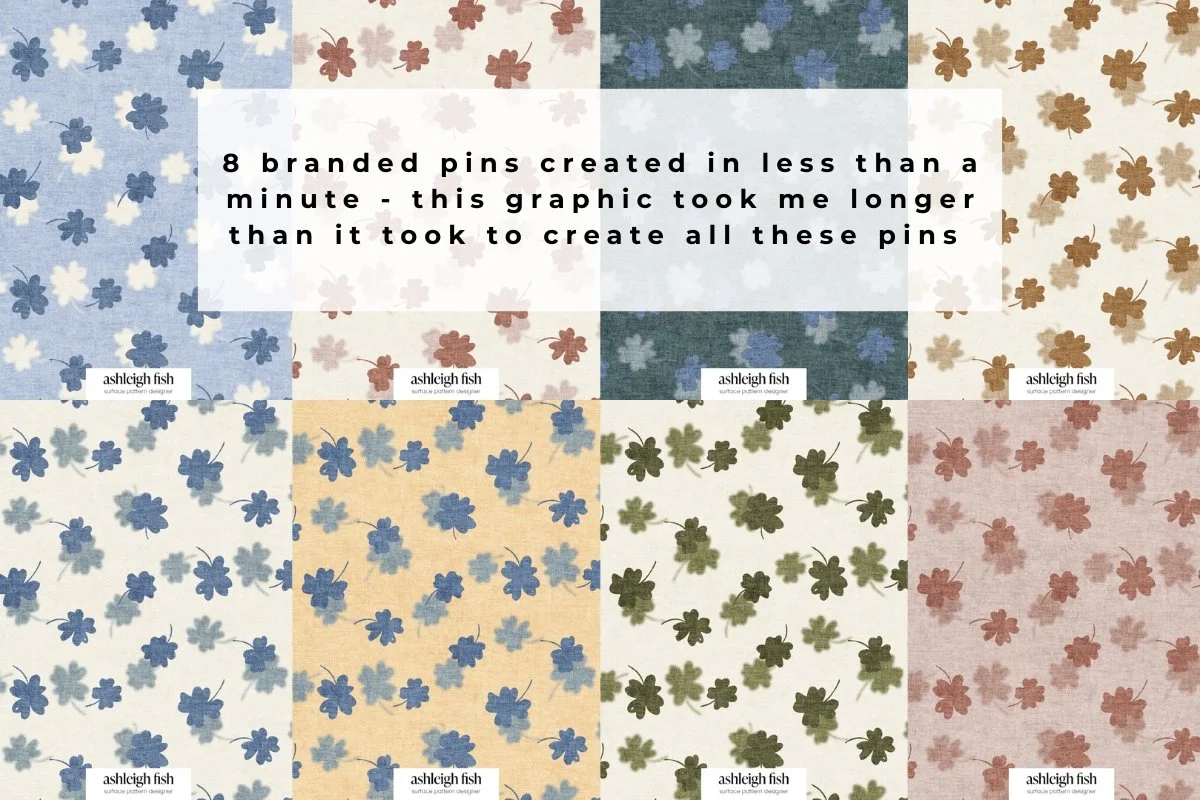
If you're a surface pattern designer, you already know Pinterest is one of the best places to get your work seen. Art directors browse it. Brands use it for trend research. And unlike Instagram, your pins keep working for you long after you post them.
But here's the part nobody talks about: actually turning your designs into Pinterest pins takes time. Time you don't always have after the creative work is done.
In this post, I'm sharing the exact workflow I use to get my pattern designs onto Pinterest quickly, including a free tool I built that does most of the heavy lifting for you.
Why Pinterest is worth your time as a surface pattern designer
Pinterest is a visual search engine. When someone types "floral surface pattern" or "abstract repeat design" into the search bar, they're actively looking for exactly what you make.
That's very different to Instagram, where you're competing with everything in someone's feed for a few seconds of attention.
Pinterest is also evergreen. A pin you post today can still be driving traffic to your portfolio or website two years from now. For designers who want consistent visibility without constantly creating new content, that matters.
The challenge is consistency. To build momentum on Pinterest, you need to be pinning regularly, whatever this means for you, I aim for 1-2 per day. For most designers, that feels completely out of reach on top of everything else.
That's the problem this workflow solves.
What most designers do (and why it slows them down)
Most surface pattern designers either skip Pinterest altogether, or they post sporadically when they remember, which isn't enough to build any real traction and Pinterest rewards consistency.
The ones who do try to be consistent usually hit the same wall: creating the actual pin graphic.
You have the design. But a Pinterest pin isn't just a square image dropped onto a white background. You need the right dimensions (1000 x 1500px is the current best practice), some basic text or context, and it needs to look polished enough to stop someone mid-scroll.
Opening Canva, resizing everything, adding text, exporting, it's not hard, but it takes time. And when you're doing it for every design, every week, it becomes the thing that stops you pinning at all.
The faster way: my Pinterest pin maker tool
I created a free tool that takes your pattern design and turns it into a Pinterest-ready pin graphic.
You upload your design. The tool formats it. You download and upload to Pinterest.
That's the whole process.
I use this in my own workflow, especially during challenge months when I'm creating a lot of new designs and want to get them onto Pinterest without adding a mountain of extra admin. The time it saves on the graphic creation side alone makes it worth using.
Try the free Pinterest pin maker here
Pattern Pin Generator
How to use it in your workflow: a simple system
Here's how I recommend using the tool if you want to build a consistent Pinterest habit without it taking over your week:
Step 1: Batch your pin creation Pick one day a week (even just 30 minutes) to turn your recent designs into pins. Don't do it every single week. Batch it.
Step 2: Upload to the tool and download your graphics Use the pin maker to generate your pin graphics in bulk. If you've finished five new designs this week, turn all five into pins in one session. I reccommed uploading one design in multiple colourways to get a multiple pins for each design.
Step 3: Schedule or upload Upload directly to Pinterest and use their native scheduler. Aim for consistency over volume, even five solid pins a week adds up fast.
Step 4: Write your pin descriptions Each pin needs a keyword-rich description. Keep it simple: describe the design, mention the style, include words your ideal buyer or brand might search. (You can grab my free guide for tips on how to write titles and descriptions).
Step 5: Include a link Every pin should link somewhere, your portfolio, your website, or a relevant page like Spoonflower. Don't leave this blank.
What to pin as a surface pattern designer
If you're not sure what to create pins from, here are some starting points:
Challenge designs (Erin Kendal’s Blender Bonanza, Creative Studio Collective challenges, any themed design work)
Individual pattern designs from your portfolio
Colour palette explorations (always fun to test outside of your signature palette on Pinterest).
Challenge designs are especially worth pinning. They're fresh, they're trend-relevant, and they show the range of what you can create. Mulitple colours of each design is where this pin creator really shines!
Want to go deeper?
If you want to build a full Pinterest strategy, not just pin occasionally, but use Pinterest to grow your visibility with brands and attract licensing enquiries, my Pinterest course covers exactly how I do it.
Check out my Pinterest Workshop
And if you haven't grabbed the free guide yet, that's a good place to start: